Showing posts with label Google Analytics. Show all posts

Tuesday, August 10, 2010

Google Analytics and How Your Buyers Found You

analytics_logo This is directly from a forum post on the Etsy forums by cindylouwho2

Google Analytics and How Your Buyers Found You

Her post is geared towards sellers on Etsy, however this information is useful for anyone who would like to know how a site visitor found his or her website.

I’ve copied and pasted her post but put her screen shots where appropriate:

Google Analytics and How Your Buyers Found You by cindylouwho2

Google Analytics is not perfect, but most people can use it to track where most of their buyers found them.

First, if you haven't already, sign up for Google Analytics:
http://www.etsy.com/storque/media/bunker/2009/03/GoogleAnalyticsForSellers.pdf

Make sure you also enable the "Site Search" option, which tells you how people searched for you on Etsy: http://www.etsy.com/storque/etsy-news/tech-update-etsy-web-analytics-enhancements-3350/

Then, after you make a sale (remember that it can take 2-3 hours for GA to update)

A] log into GA, change the date to today (top right) and find the buyer's location by clicking on Visitors--> Map Overlay--> Country (menu on the left), then the region and/or city.

TIP: not everyone will have exactly the same postal address as GA shows them from. Look for nearby cities. You may have to Google the town or city name they gave you to find out what it is close to

B] if you find the city or town, click on it. You will see a screen like this:
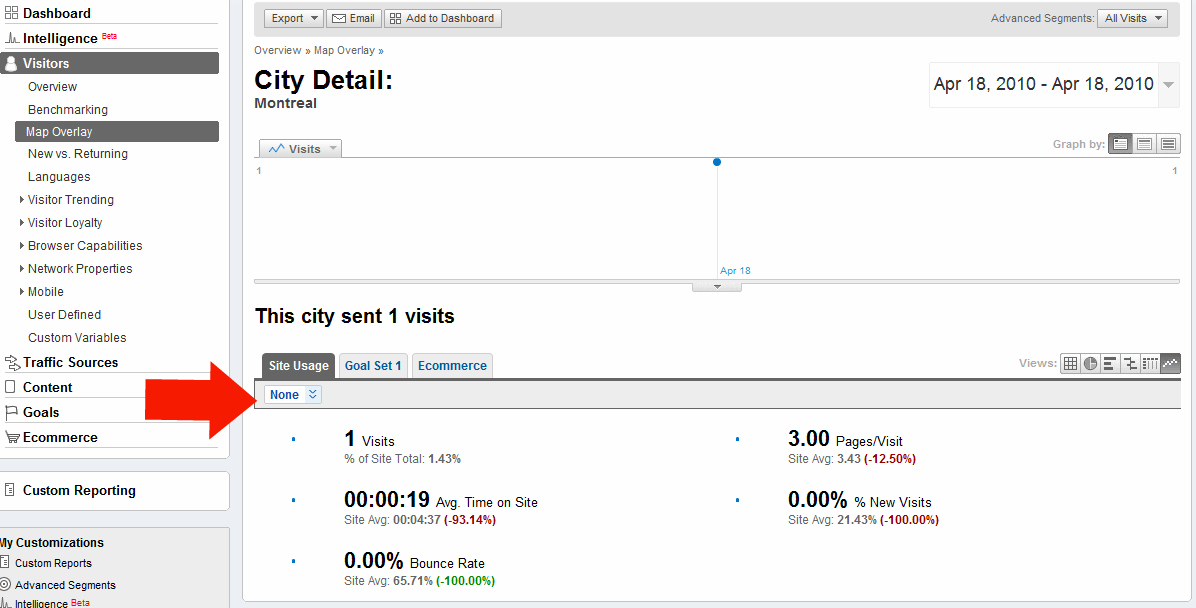
Note the little arrow pointing to the drop-down menu that says "None" - that is called the "Dimension" menu

C] click on the menu that says "None" - your screen will now look like this:
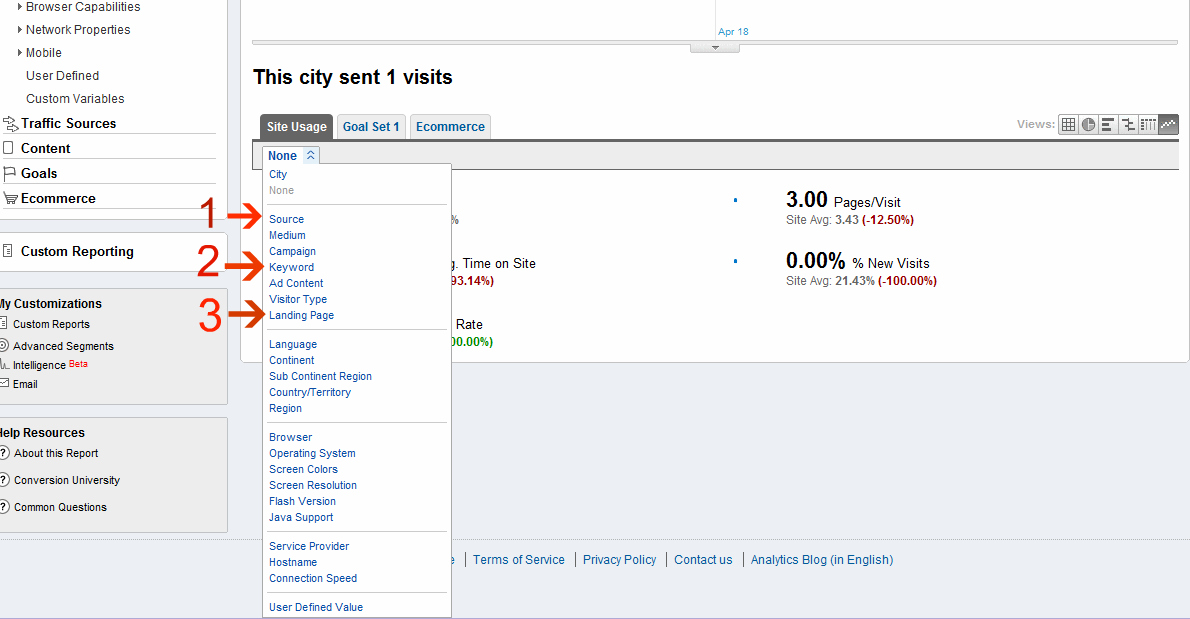
D] if you click on the menu option that says "Source", you will know which website they entered Etsy from.

If that is a search engine (like Google, Yahoo etc.) click on "Keyword" to see which terms they found Etsy with. Sometimes this will answer your question!

E] Unfortunately, GA only shows how people entered Etsy, not necessarily your shop, so if the source & keyword do not make sense for your shop, or if the source is "direct", you need to click on "Landing Page" to see what page they first arrived on.

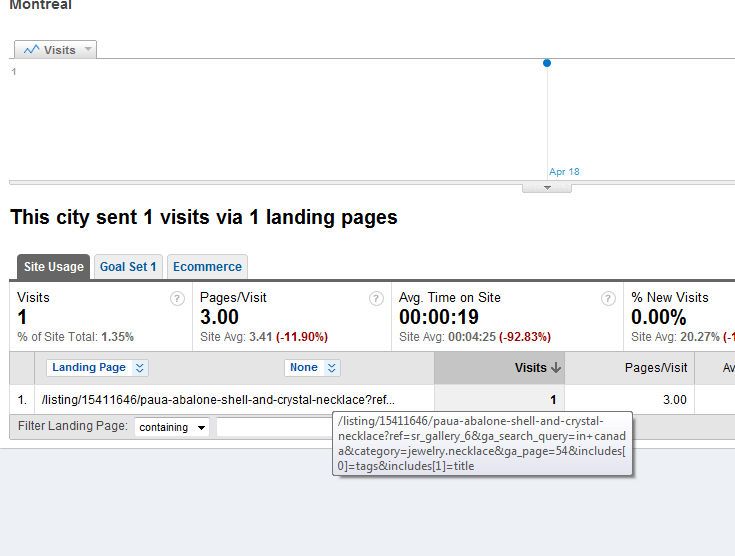
Often you will get a result that looks like this:


(hover the cursor over the shorter title to see the long one in the box)
In that result, the person searched "In Canada" in the Jewelry-->Necklace category on Etsy, & found my "paua-abalone-shell-and-crystal-necklace" on page 54 of the search.
This page can help you decode the landing page data:
http://spreadsheets.google.com/pub?key=pXKD_gzPKRz7D1SS-RbgFPw
although it isn't 100% up to date. Usually the codes are clear once you look carefully

F] If you could not find the city your buyer listed as their address (maybe they are on vacation & shopping from another location), then you can still try to find them by going to the "Content-->Content By Title" menu (on the left), & locate the item they bought. You can use the "Dimension" menu the same way as before to find out how the people who looked at that page today entered Etsy, & which page they landed on to find your shop.

Sadly, GA cannot track every buyer, as people can block the tracking, & some computers don't have the correct software installed to track through GA. Also, if you have a very busy shop or generally get a lot of business from one region (like New York City) then it might be tough to narrow this down. However, I can track at least 90% of my buyers this way

Try it! it is easier than it looks!

Friday, August 6, 2010

Google Analytics Mind Map Cheat Sheet

1568_computer_instructor_clipart I posted this on my origami and craft business blog in April 2010.  I thought it might be nice to share my thoughts with you!

Thank you for reading!

Google Analytics Mind Map Cheat Sheet

Tuesday, June 15, 2010

How to add Google Analytics to your Facebook Fanpage

analytics_logo If you use Google Analytics you know how powerful this tool is for your business.  Facebook Fanpages has its analytical tool called ‘insights’, confined to the activities generated by your fans and don’t have any idea how those fans found your page in the first place.
Not everyone visiting the page will ‘like’ you.  After researching, I've found many resources to add analytics.  The issue I have with most of them is that their tutorials assume you know some HTML coding and it's confusing.  All I want is to put that tracking code!  Fortunately I figured it out and hope this is helpful to you..

Step #1
Add the FBML application to your facebook fanpage.  I got this off the official tutorial from Hyperarts

Adding Static FBML to your Public Profile (Fan Page)
  1. Click “Edit Page” under the Page’s large avatar image;
  2. Under “Applications,” under “More Applications” click the pencil/edit icon and select “Browse more”;
  3. Under “All Applications” in the left column, enter “static fbml” (without quotes) into the search field and hit your enter/return key;
  4. Go to the Static FBML application from the search results page (it should be the only result);
  5. Click “Add to my Page” in the left column;
  6. You have successfully added Static FBML to your Page.
Step #2
  • Create a Google Analytics account if you don't already have one.
  • Create a website profile in GA to generate the tracking code
Step #3
Step #4
  • Go to your fanpage
  • Go to 'edit page'
  • Go to 'edit FBML'
  • Make up a title or name.  I just call mine "Thank you for visiting!" so it's not obvious what it really is.  paste the code in the field provided
  • save changes
  • On your page, go to the 'boxes' tab.  You should see a box with the title you just saved
  • click on it 'pencil' and instruct to move to wall
  • Go to your wall, you should find that box.  I like to move it tot he side.
  • Wait a day or two and check analytics.  Voila!  You should have streaming data!

Tuesday, May 18, 2010

Google Analytics - Filtering Out Your Own IP Address

analytics_logo I discovered Google Analytics when I opened up my Origami Etsy store.  This program opened up a new world of marketing opportunities.   I’ve applied it to my on-line store, Etsy, Artfire, Facebook Fanpage, both my blogs and trying to figure out if it can be applied to other platforms like twitter and Zibbet.  (All in my limited spare time)

I got a lot of traffic!  Or so I thought. My views were overstated as I constantly visited my own sites whenever I updated something to ensure it looked right.  When you are trying to figure out your demographic, doesn’t help if 30% of the hits are yours.  Then I realized, “Hey, if this thing is so great, there MUST be a way so my visits aren’t counted”  And guess what….I googled it and there is a way!

There is a short explanation on Google’s Help but I find the majority of them are not that clear.  You can tell that the answers are geared toward professional web developers.  I’m sure most of us just wants step by step instructions on how to do it.

  • First thing you need is to get your IP address.  http://whatismyipaddress.com/
  • Log into Google Analytics
  • Click on Filter Manager – Bottom Right Corner
  • A new page will open, click on the gray tab “+Click on Add Filter”
  • A new page will open, name your Filter (I like to use something like – Cindy’s Laptop)
  • In the "Filter Type" drop-down menu select “Exclude All Traffic from an IP Address”
  • choose the websites you want to "Apply Filter to Website Profiles" (i.e. yourshop.etsy.com) and click ADD
  • A new page will open with the IP address field.  Enter your IP Address in the fields provided

Repeat if you use multiple devices.  I currently filtered out my work and home computers and probably need to filter out additional ones.