Showing posts with label Tutorials. Show all posts

Friday, October 30, 2015

Learning about Lasers: Laser Categories

Ever since pre-ordering the Glowforge, I’ve been obsessed about learning more about laser cutting and etching equipment.  It’s the largest expense made to date so I wanted to ensure I know how to take care of it.  Since Glowforge is so new, they haven’t finalized their design yet.  No online manuals yet for us.  The internet contains a wealth of information.  The Glowforge machine is really a scaled down version of the industrial machine.

Since I’m reading up on it anyway, why not share some of the knowledge with beginners just like me.  If you have any feedback and / or comments, please let me know!

Glowforge offers a Class I laser and a Class 4 laser

  • Class I (Basic model) means you don’t have to take additional safety precautions to be safe
  • Class 4 (Pro Model) means you have to take precautions like posting warning signs and wear proper safety glasses

I’m looking forward to reading Glowforge’s safety precautions about it when it become available.  However, it’s good to know about all the classes so you know where your machine fits in the industry.  So I copied and pasted this excerpt that I found very helpful from the Ackland’s Grainger Website. 

Disclaimer: I’m not an expert and you must always refer to the guidelines from the manufacture or your machine or their website for your safety and safety of those around you.

Laser Categories (Excerpted from Acklands Grainger):

Vision damage can occur from directly viewing the laser source or if the laser beam hits the eye. Damage is usually severe, and may result in blindness, which is why direct viewing of the laser source and its reflections should be avoided. A laser's reflective beam intensity may equal its direct beam intensity; therefore, no reflective objects or surfaces should be in the area with the laser.

Light is radiant energy and is defined as electromagnetic radiation. It is measured in wavelengths and described in nanometers (nm). A laser produces an intense beam of light of a single wavelength (or color) and frequency. Laser intensity varies from low power (Class 1, 2, and 3A lasers), to medium (Class 3B) to high power (Class 4). The American National Standards Institute (ANSI) classifies lasers into categories and gives guidelines on laser safety in the standard Z136.1. Following are laser categories as outlined by ANSI.

Class 1: Cannot emit laser radiation at known hazard levels. Users of Class 1 lasers are generally exempt from radiation hazard controls during operation and maintenance, but not necessarily during service. Most Class 1 industrial lasers consist of a higher class laser enclosed in a properly interlocked and labeled protective enclosure.

Class 2: Low-power visible lasers. Emit laser radiation above Class 1 levels and radiant power not above 1mW. The human aversion reaction to bright light will protect the person from this low level. Example: a supermarket laser scanner.

Class 3A: Intermediate-power lasers. Only hazardous for intrabeam viewing. Some limited controls are usually recommended. Example: a helium-neon laser used in the construction industry.

Class 3B: Moderate-power lasers. Not generally a fire hazard and not capable of producing a hazardous diffuse reflection, except in instances of intentional staring at distances close to the diffuser. Specific controls are recommended.

Class 4: High–power lasers. Hazardous to view under any condition (directly or diffusely scattered). Potential fire hazard and a skin hazard. Significant controls are required for Class 4 laser facilities. Example: an Excimer laser operating in the ultraviolet.

A laser's danger varies depending on which area of the light spectrum it is generating. The ultraviolet radiation laser (180-400nm) causes corneal burns. Lasers in the near-infrared region (780-1800nm) cause retinal damage. These are usually Class 2, 3A, 3B and 4 lasers. The high-powered lasers, Class 3B and 4, can also cause electrical shock and skin burns. A skin cover, like opaque gloves and tightly woven fabrics, and or a "sun screen" may be recommended.

A laser consists of a resonant optical cavity filled with an active medium. The medium is acted upon by some source of excitation energy. The media could be one of three types: a solid state, a gaseous state, or a semiconductor or injection-type. Solid lasers use a crystal, e.g., ruby, glass or a semiconductor (argon) as the light amplifying substance, producing a pulsating laser beam. A gaseous state laser (helium-neon) produces a continuous beam.

For information on the laser’s wattage or power of the laser, refer to the instruction/maintenance manual.


Monday, June 1, 2015

Summer Fan Garland by Craftaholics Anonymous

One of my favourite bloggers posted this great tutorial using the Martha Stewart Score Board last year. 

Please click on the below hyperlink and enjoy!

Summer Fan Garland Tutorial

Tuesday, August 10, 2010

Google Analytics and How Your Buyers Found You

analytics_logo This is directly from a forum post on the Etsy forums by cindylouwho2

Google Analytics and How Your Buyers Found You

Her post is geared towards sellers on Etsy, however this information is useful for anyone who would like to know how a site visitor found his or her website.

I’ve copied and pasted her post but put her screen shots where appropriate:

Google Analytics and How Your Buyers Found You by cindylouwho2

Google Analytics is not perfect, but most people can use it to track where most of their buyers found them.

First, if you haven't already, sign up for Google Analytics:
http://www.etsy.com/storque/media/bunker/2009/03/GoogleAnalyticsForSellers.pdf

Make sure you also enable the "Site Search" option, which tells you how people searched for you on Etsy: http://www.etsy.com/storque/etsy-news/tech-update-etsy-web-analytics-enhancements-3350/

Then, after you make a sale (remember that it can take 2-3 hours for GA to update)

A] log into GA, change the date to today (top right) and find the buyer's location by clicking on Visitors--> Map Overlay--> Country (menu on the left), then the region and/or city.

TIP: not everyone will have exactly the same postal address as GA shows them from. Look for nearby cities. You may have to Google the town or city name they gave you to find out what it is close to

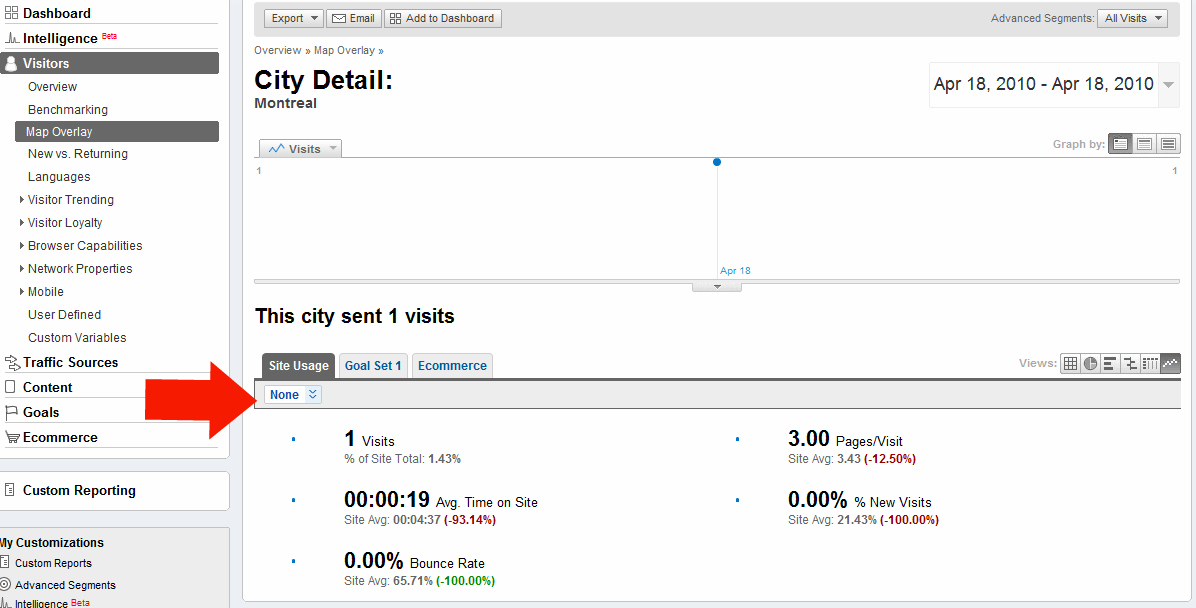
B] if you find the city or town, click on it. You will see a screen like this:

Note the little arrow pointing to the drop-down menu that says "None" - that is called the "Dimension" menu

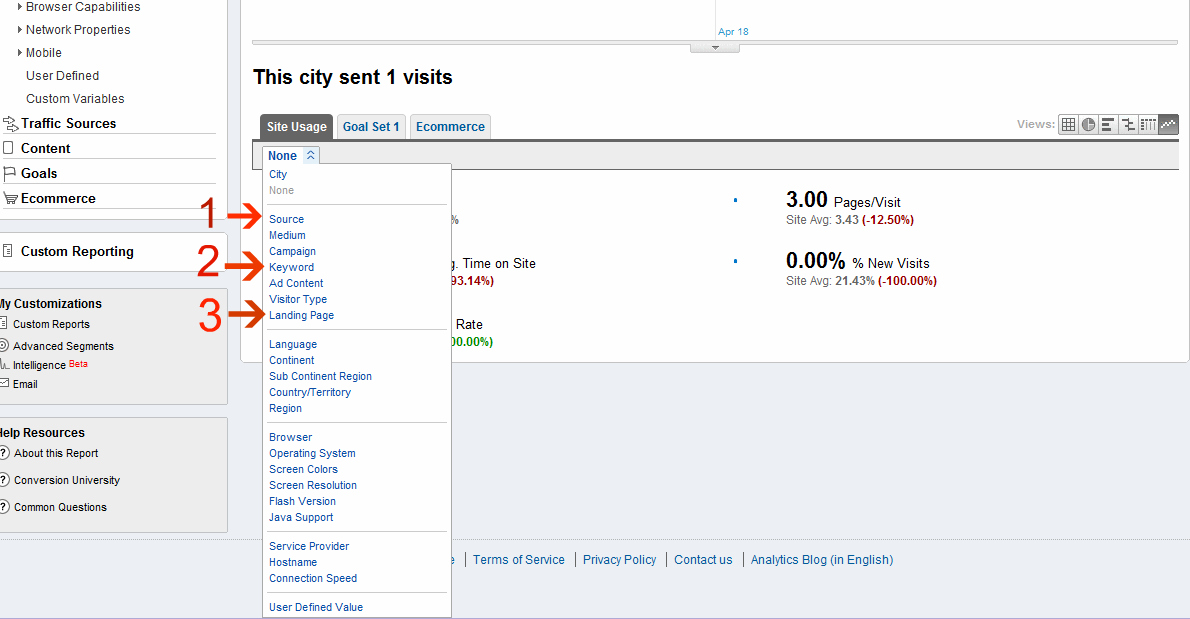
C] click on the menu that says "None" - your screen will now look like this:

D] if you click on the menu option that says "Source", you will know which website they entered Etsy from.

If that is a search engine (like Google, Yahoo etc.) click on "Keyword" to see which terms they found Etsy with. Sometimes this will answer your question!

E] Unfortunately, GA only shows how people entered Etsy, not necessarily your shop, so if the source & keyword do not make sense for your shop, or if the source is "direct", you need to click on "Landing Page" to see what page they first arrived on.

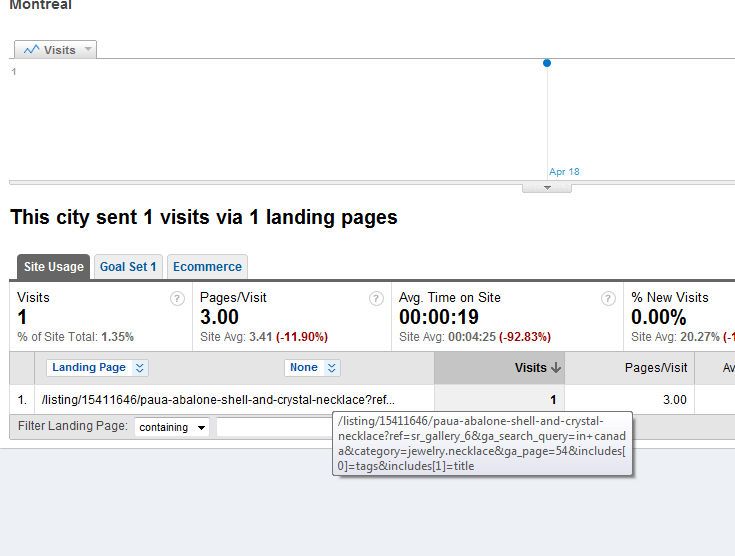
Often you will get a result that looks like this:


(hover the cursor over the shorter title to see the long one in the box)
In that result, the person searched "In Canada" in the Jewelry-->Necklace category on Etsy, & found my "paua-abalone-shell-and-crystal-necklace" on page 54 of the search.

This page can help you decode the landing page data:
http://spreadsheets.google.com/pub?key=pXKD_gzPKRz7D1SS-RbgFPw
although it isn't 100% up to date. Usually the codes are clear once you look carefully

F] If you could not find the city your buyer listed as their address (maybe they are on vacation & shopping from another location), then you can still try to find them by going to the "Content-->Content By Title" menu (on the left), & locate the item they bought. You can use the "Dimension" menu the same way as before to find out how the people who looked at that page today entered Etsy, & which page they landed on to find your shop.

Sadly, GA cannot track every buyer, as people can block the tracking, & some computers don't have the correct software installed to track through GA. Also, if you have a very busy shop or generally get a lot of business from one region (like New York City) then it might be tough to narrow this down. However, I can track at least 90% of my buyers this way

Try it! it is easier than it looks!

Tuesday, August 3, 2010

How to build a Facebook Fanpage

1568_computer_instructor_clipart I posted this on my origami and craft business blog in April 2010.  I thought it might be nice to share my thoughts with you!

Thank you for reading!

How to Build a Facebook Fanpage

Tuesday, July 6, 2010

How to discreetly make yourself at home at work

 jsin245l If you work in a corporate office I bet you spend at least 8 to 10 hours a day there.  In many cases, including myself, more.  If you are going to be there for the majority of your day, might as well make yourself as comfortable.  These are the few things that I do. I know many of you can’t implement some of these comforts, but look at your own situation and see what you can apply to your work life.

Listen to music

If you don’t feel comfortable leaving your MP3 player out, for less than $10 you can get a cheap pair of ear phones and a jack extension and listen to streaming radio through your computer.  Your favourite radio station probably has a live feed but there are thousands out there.  Just google ‘streaming radio’

I use headphones, not ear buds to make it obvious that I’m listening to music.  I’ve built a reputation that my wearing headphones is a signal not to bother me as I’m in deep analytical thought.  (Basically it better be important!)

Put your feet up

I don’t like wearing my shoes and take them off at my desk.  I often sit cross legged on my work chair.  Now we know that for many offices that’s not appropriate.  So I moved my console under my desk perpendicular to me and put my feet up on it.  It’s pretty discreet and it helps me relax.

Get a mini fridge or a mini cooler. 

Then you can always have ice cold drinks in the summer.  I got creative, I used to work upstairs and there’s a overhang outside my window.  No one can climb up there.  So during the colder months I used to put my weekly pop can just outside.

Bring your own coffee, tea or hot water

Most of the offices I’ve worked at or visited, someone has to make the coffee for the rest of the group.  No one wants to make it or the coffee may be so old it’s winking at you.  If the tea is supplied, it’s usually orange pekoe (not my favourite tea yuck!).  If you are a picky coffee drinker, make it at home, put it in a big thermos and bring it with you. 

Sunday, June 20, 2010

How to Implement a One Question Survey

pablo I browse through the Etsy forums on a regular basis because there’s always helpful souls generous enough to share business tips and their knowledge.  Someone posted a link to this post from Handmade Spark:

Ever Wonder How Customers Find Your Etsy Shop? Here Is An Easy Answer

This was written in mind to create a survey for how a buyer found their Etsy shops, but I think it’s useful for other things that you may require a survey if you accept payments by Paypal.

Tuesday, June 15, 2010

How to add Google Analytics to your Facebook Fanpage

analytics_logo If you use Google Analytics you know how powerful this tool is for your business.  Facebook Fanpages has its analytical tool called ‘insights’, confined to the activities generated by your fans and don’t have any idea how those fans found your page in the first place.
Not everyone visiting the page will ‘like’ you.  After researching, I've found many resources to add analytics.  The issue I have with most of them is that their tutorials assume you know some HTML coding and it's confusing.  All I want is to put that tracking code!  Fortunately I figured it out and hope this is helpful to you..

Step #1
Add the FBML application to your facebook fanpage.  I got this off the official tutorial from Hyperarts

Adding Static FBML to your Public Profile (Fan Page)
  1. Click “Edit Page” under the Page’s large avatar image;
  2. Under “Applications,” under “More Applications” click the pencil/edit icon and select “Browse more”;
  3. Under “All Applications” in the left column, enter “static fbml” (without quotes) into the search field and hit your enter/return key;
  4. Go to the Static FBML application from the search results page (it should be the only result);
  5. Click “Add to my Page” in the left column;
  6. You have successfully added Static FBML to your Page.
Step #2
  • Create a Google Analytics account if you don't already have one.
  • Create a website profile in GA to generate the tracking code
Step #3
Step #4
  • Go to your fanpage
  • Go to 'edit page'
  • Go to 'edit FBML'
  • Make up a title or name.  I just call mine "Thank you for visiting!" so it's not obvious what it really is.  paste the code in the field provided
  • save changes
  • On your page, go to the 'boxes' tab.  You should see a box with the title you just saved
  • click on it 'pencil' and instruct to move to wall
  • Go to your wall, you should find that box.  I like to move it tot he side.
  • Wait a day or two and check analytics.  Voila!  You should have streaming data!

Tuesday, May 18, 2010

Google Analytics - Filtering Out Your Own IP Address

analytics_logo I discovered Google Analytics when I opened up my Origami Etsy store.  This program opened up a new world of marketing opportunities.   I’ve applied it to my on-line store, Etsy, Artfire, Facebook Fanpage, both my blogs and trying to figure out if it can be applied to other platforms like twitter and Zibbet.  (All in my limited spare time)

I got a lot of traffic!  Or so I thought. My views were overstated as I constantly visited my own sites whenever I updated something to ensure it looked right.  When you are trying to figure out your demographic, doesn’t help if 30% of the hits are yours.  Then I realized, “Hey, if this thing is so great, there MUST be a way so my visits aren’t counted”  And guess what….I googled it and there is a way!

There is a short explanation on Google’s Help but I find the majority of them are not that clear.  You can tell that the answers are geared toward professional web developers.  I’m sure most of us just wants step by step instructions on how to do it.

  • First thing you need is to get your IP address.  http://whatismyipaddress.com/
  • Log into Google Analytics
  • Click on Filter Manager – Bottom Right Corner
  • A new page will open, click on the gray tab “+Click on Add Filter”
  • A new page will open, name your Filter (I like to use something like – Cindy’s Laptop)
  • In the "Filter Type" drop-down menu select “Exclude All Traffic from an IP Address”
  • choose the websites you want to "Apply Filter to Website Profiles" (i.e. yourshop.etsy.com) and click ADD
  • A new page will open with the IP address field.  Enter your IP Address in the fields provided

Repeat if you use multiple devices.  I currently filtered out my work and home computers and probably need to filter out additional ones.